
It is useful to find a particular individual and access the reports for which they are stakeholders. It is also useful to identify if a person is involved in multiple reports and potentially access useful information from other reports (if you have access to those reports, of course).
The participant repository is accessible by anyone with access to reports (members, admins, restricted admins). It is not accessible by configurators.
If you are a member with limited access to only specific reports, you will only access participants for which you have an access to reports. If you look for a participant mentioned in a report for which you have no access, you will not find the participant.
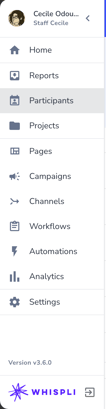
The Participant Repository is accessible from the main menu on the left hand side, between the 'Reports' and the 'Projects':
There are various actions you can perform in the participant repository:
- Create new participants
- Edit existing participants
- View and access all reports involving a participant (considering you have access to those reports in the first place)
- Delete a participant from all reports in which they are involved.
How can I create a new participant from the participant repository?
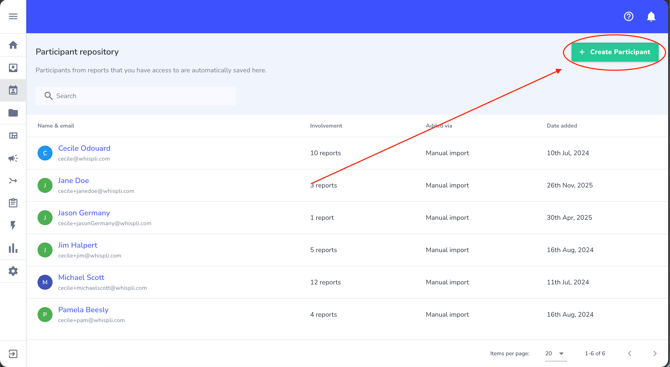
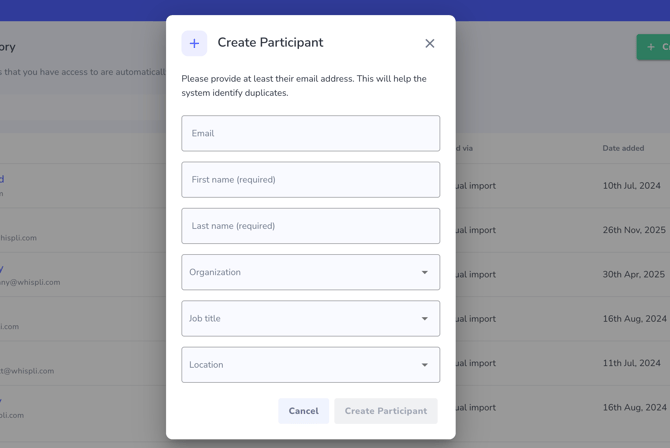
Just click on the 'Create Participant' button at the top right of the screen. It opens a pop up window with the participant fields to fill in:
How can I edit an existing participant from the participant repository?
To edit a participant, click on the relevant participant and either select the 'Edit' option available in the three dot menu or click on the button 'Edit' available on the participant details page:
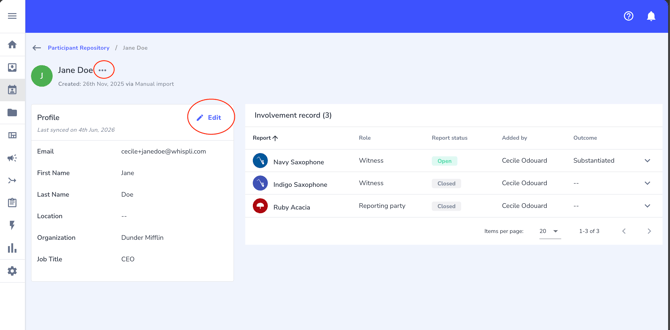
Note: when you update the participant profile, it updates the information on all reports linked to that participant. However, you can find a snapshot of the participant profile at the time the participant was added to the report in the participant tab of the report, so you can check the participant information at the time of the report. This is particularly useful if the participant moved to another position internally.
How can I view all reports involving a participant?
When you access the participant details, you can see a list of all reports available to you that involve this particular participant, and their role in those reports:
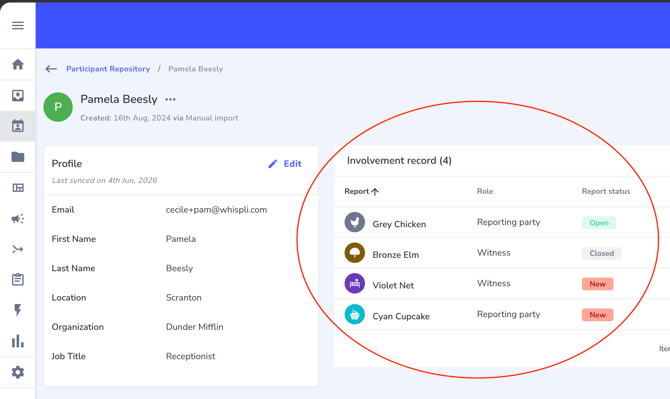
You can click on any reports to check its details.
Note: if a participant is involved in reports upon which you have no visibility in Whispli, they will not be listed for you and there is no way you can know additional reports exist.
How can I delete a participant from all reports?
To delete a participant, you need to go to the case details and click on the three dots next to the participant name and click on 'Delete':
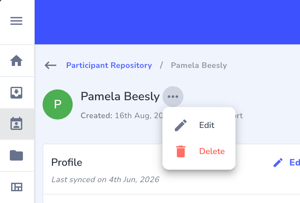
When you do so, you need to confirm the action with three verifications, as this action is irreversible.
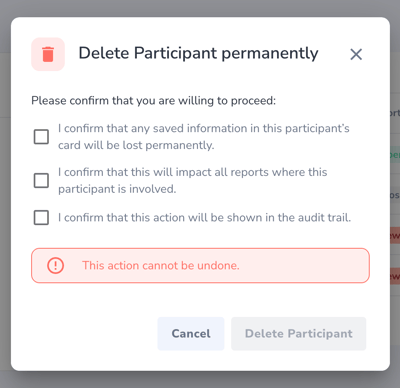
Note: this action may have been deactivated depending on your user role.
If you would like to understand how to add participants to reports. Check this help page.