⚠️ Important
You can only edit the last part of the URL.
Avoid using special characters, spaces, or capital letters.
If you change the URL of a page that’s already been shared (or linked via QR code), don’t forget to update those links wherever they are shared, and update the QR codes as well.
✅ Steps to change the URL of a Page
- From the Whispli platform, click on Pages in the left-hand navigation menu.
- Choose the Page whose URL you want to update and open the edition of that page (click on the title of the page to open its edition).
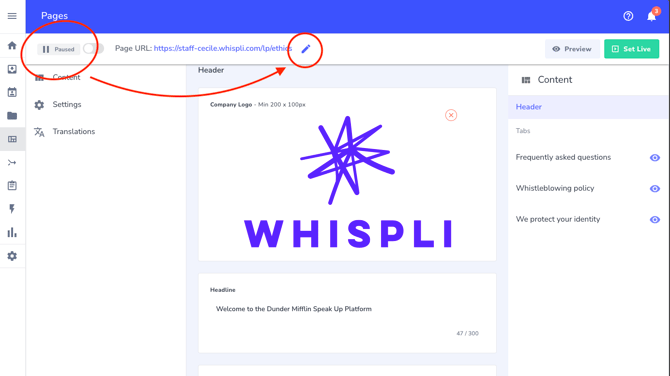
- Pause the Page : A page must be in paused mode before you can change its URL. Use the toggle switch at the top to pause it.
- Click the pencil icon next to the Page URL. Once the page is paused, click on the pencil icon next to the current URL (as shown in the screenshot below) to edit it:
- Edit the URL in the popup window. As mentioned above, only the last part of the URL is customizable.
- Click 'Confirm' to save your new URL.
If you're ready to publish, use the toggle to switch the Page back to Live mode.
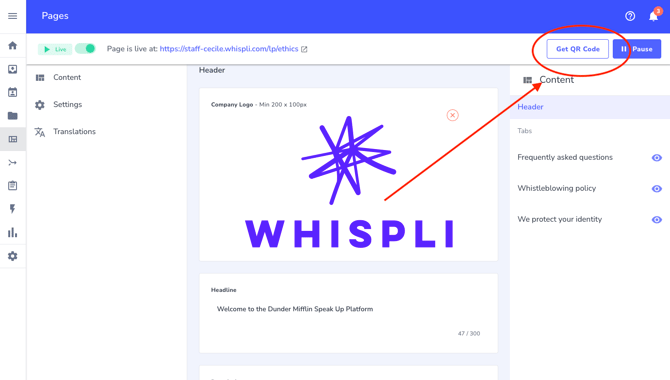
Once the page is live, you can download the new QR code. Just click on the 'Get QR Code' button at the top right of the page configuration: