
Only admins, restricted admins and configurators can create tags.
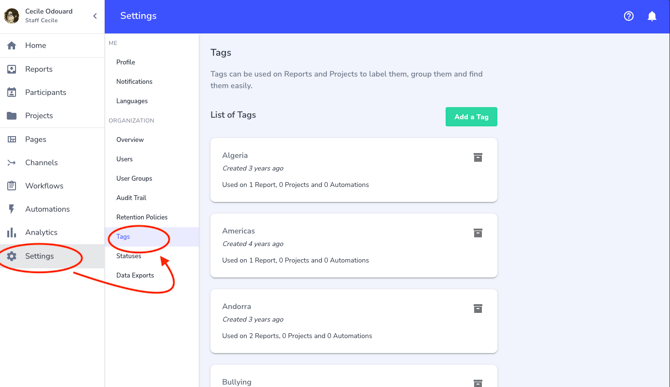
To create tags, just go to 'Settings' in the main left menu, then click on 'Tags':
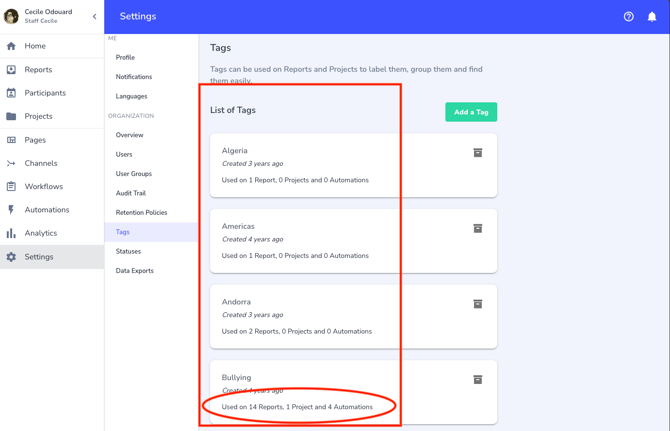
If you already have tags, the list will appear in the central area, with the number of reports, projects and automations linked to each tag.
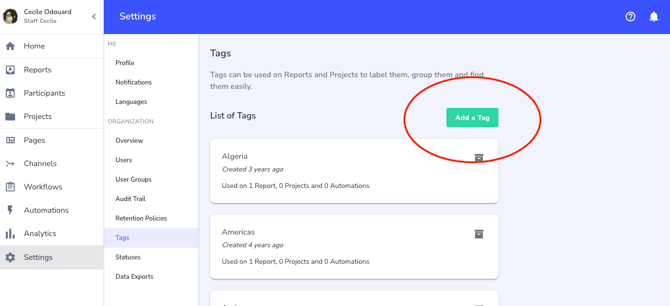
Just click on the green button entitled 'Add a Tag' to create a new tag:
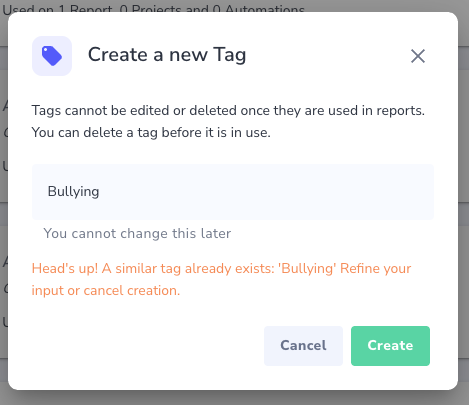
A pop up window appears and you can just type the Tag you wish to add. If you try to add a tag that already exists, a warning message appears in red in the pop up window so you can avoid to create a duplicate:
Once a tag is created, you can delete it as long as it's not included in any report, project or automation. As soon as it's included in a report, or a project or an automation, it cannot be deleted anymore. However you have the option to archive the tag so it doesn't appear anymore to be applied either manually or via automations.