
To modify a live channel, you must first pause it. Pausing the channel prevents further submissions while you make necessary changes.
Steps to Edit a Live Channel
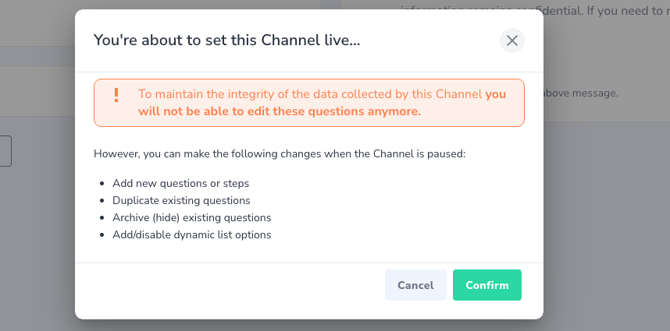
- Pause the Channel: Before making any edits, pause the live channel. This prevents new submissions from interfering with the changes.
- Edit a Multiple Choice Option: If you need to add or remove an option to a multiple-choice question, you can do so directly after pausing the channel. You cannot rename an existing option, if you need to do that, create a new option and archive the obsolete one.
- Edit Other Question Types: For other types of questions, follow these steps:
- Duplicate the Question: Duplicate the question you wish to edit. This will appear at the end of the section where that question is located.
- Edit the Duplicate: Make the necessary changes to the duplicated question.
- Replace the Original: Drag the edited duplicate question into the position of the original question.
- Archive the Original: Archive the original question to remove it from the live channel.
- [for translated channels only] Add the translations: go to the Gear icon at the top center of the screen to open the translations and add the corresponding wording in each language.
- Resume the Channel: once all changes are made, put the channel live again.