
Who this is for: admin or a configurator · Permission needed: Access/Create/Edit/Delete Workflows, at full access
Before you start
- You need configuration access to workflows. Users with view-only access to workflows can open a workflow but cannot change who else can see it.
- Decide which roles, user groups, and users need the workflow. Only roles and users that already have at least view access to the Workflows section can be added to the list.
- Restricting a workflow does not change who can see the report itself. It only controls the workflow.
How access to a workflow is decided
Two layers decide what someone can do with a workflow, and Whispli always applies the more restrictive of the two.
Layer 1 - the role. Each role has a level of access to the Workflows section: no access, view only, view and update, or full access. This is set in Settings, under the role's permissions.
Layer 2 - the workflow's access list. Each individual workflow is either open to everyone with report access, or restricted to a named list.
A user can open a workflow only when their role gives them workflow access and they appear on that workflow's list, either as an individual, through one of their user groups, or through their role.
| Role access to Workflows | Workflow is open (default) | Workflow is restricted and the user is not on the list |
|---|---|---|
| No access | The Workflows tab is not visible | The Workflows tab is not visible |
| View only | Opens the workflow, read-only | The workflow is locked and cannot be opened |
| View and update | Opens and edits the workflow | The workflow is locked and cannot be opened |
| Full access | Opens, edits, adds, and deactivates workflows | The workflow is locked and cannot be opened |
A restriction can only narrow access, never widen it. Putting someone on a list with Can edit does not give them editing rights their role does not already include. A user whose role is view-only stays read-only.
The Administrator and Administrator (Restricted) roles always keep access to every restricted workflow, and cannot be removed from a list.
Steps
- Open the workflow in the workflow builder.
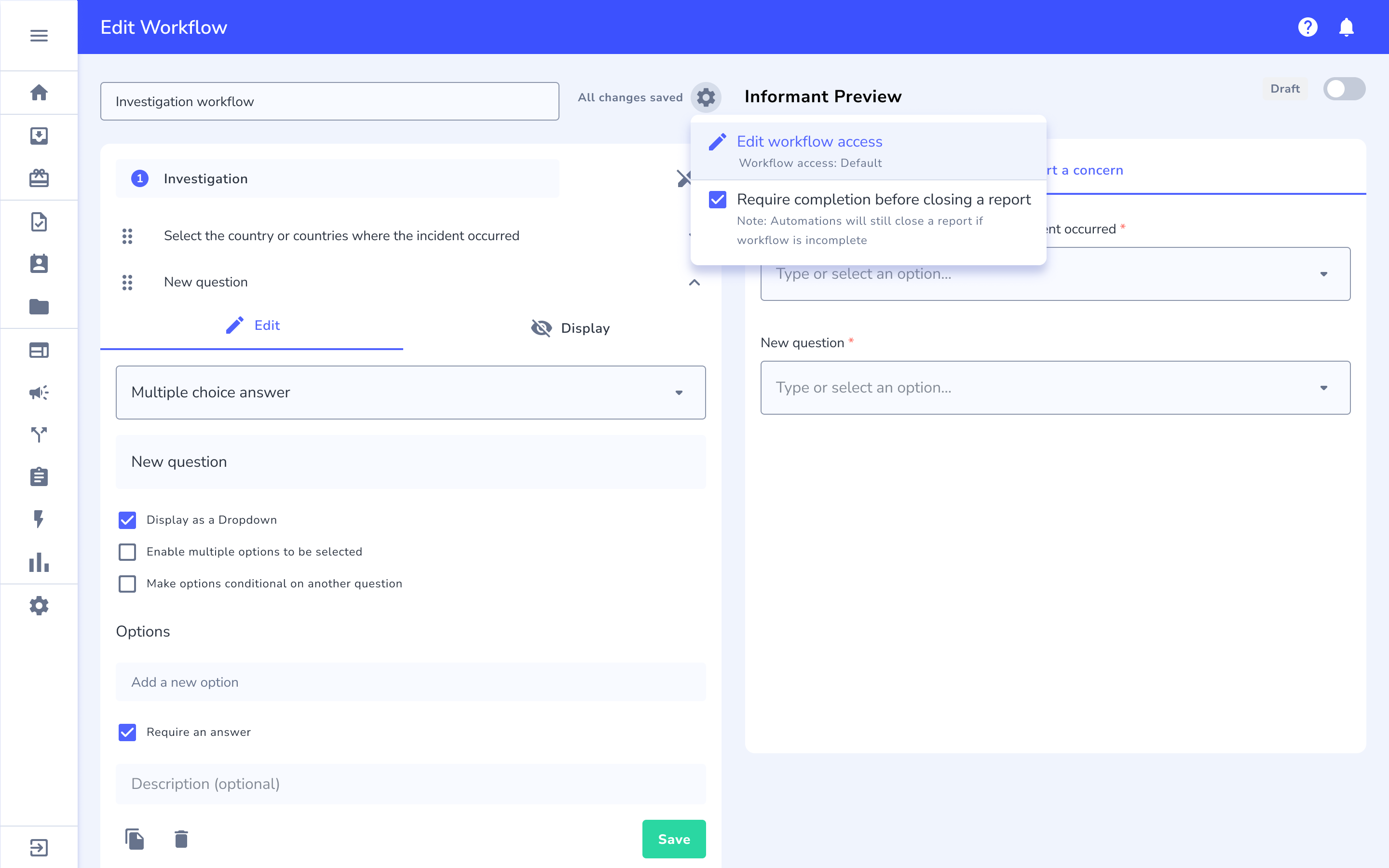
- Select the three-dots menu, then Edit workflow access. The menu shows the current state underneath, for example "Workflow access: Default".
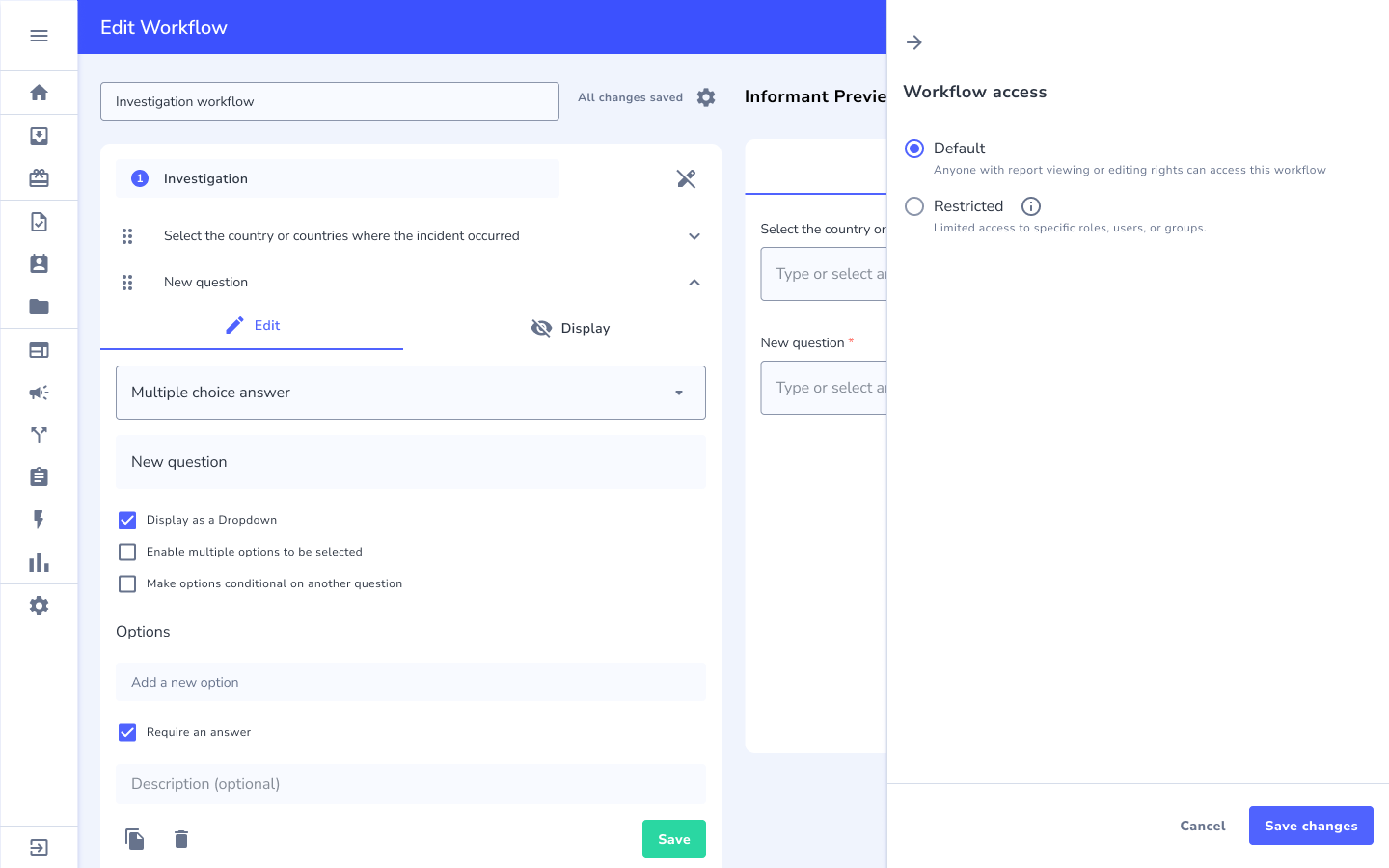
- In the panel that opens, select Restricted. The default option, Default, means "Anyone with report viewing or editing rights can access this workflow". Restricted means "Limited access to specific roles, users or groups."
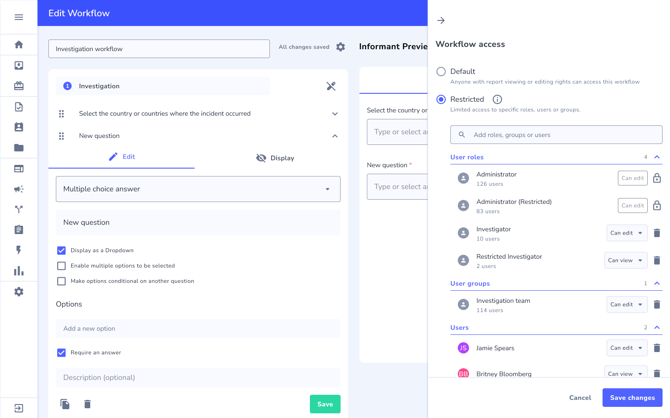
- In Add roles, groups or users, search for the role, user group, or user you want to add, and select it. You can filter the results by roles, groups, or users. Repeat for each entry you need.
- For each entry on the list, choose Can view or Can edit. Entries whose role is view-only cannot be raised to Can edit. Entries whose role allows editing can be lowered to Can view.
- To take someone off the list, select the bin icon at the right of their name. The Administrator and Administrator (Restricted) rows show a padlock instead, because they cannot be removed.
- Save the panel. The restriction applies straight away.
What happens next
- Anyone not on the list loses access to the workflow immediately. Access is re-checked on every request, so removing someone from a user group takes effect at once, without waiting for them to sign out.
- Whispli writes an entry to the audit trail for every change to the list. The entries name the person who made the change, the entry added or removed, and the workflow, for example "[user] added user group [User Group] to the restriction list for workflow [Workflow Name]".
- In the Add a workflow dialog, a restricted workflow is shown with a Restricted label, so case managers can see it exists.
What a restricted workflow looks like to someone without access
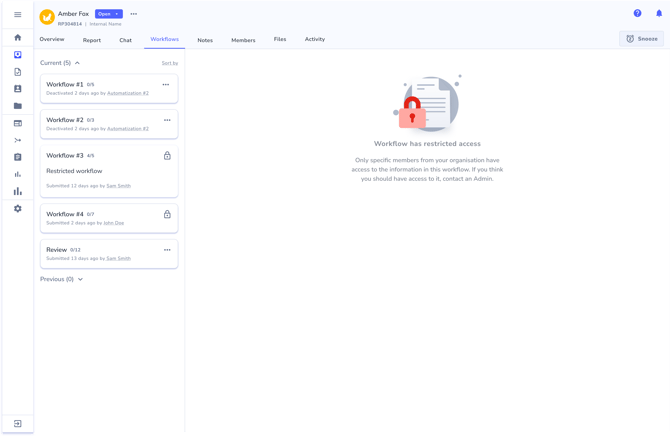
The workflow still appears in the report's workflow list, but in a locked state. Selecting it shows the message Workflow has restricted access, and explains that only specific members have access and who to contact. Nothing about the workflow's content is shown.
Case managers who need to know who does have access can select See access restriction list from the workflow card's more-options menu.
Troubleshooting
A user I added still cannot open the workflow - Check their role's access to the Workflows section in Settings. A restriction list cannot give someone access their role does not allow. If their role has no access to workflows, the Workflows tab is hidden entirely.
I cannot set someone to Can edit - Their role gives them view-only access to workflows. Change the role first, in Settings, then set the level on the list.
I cannot remove Administrator from the list - The Administrator and Administrator (Restricted) roles always keep access to restricted workflows. This is by design, so that a workflow cannot be locked away from every administrator.
A user lost access without anyone editing the workflow - They were probably removed from a user group that is on the list. Access through a group is re-checked on every request. Check the audit trail and the user group's membership.
The workflow shows as locked to me even though I have full access - Full access to the Workflows section does not bypass a restriction. Ask a configurator to add you, your role, or one of your groups to the list.