
Where can I find the task feature?
The task management feature is available at the report details level. A dedicated tab is available to access the tasks for each report:
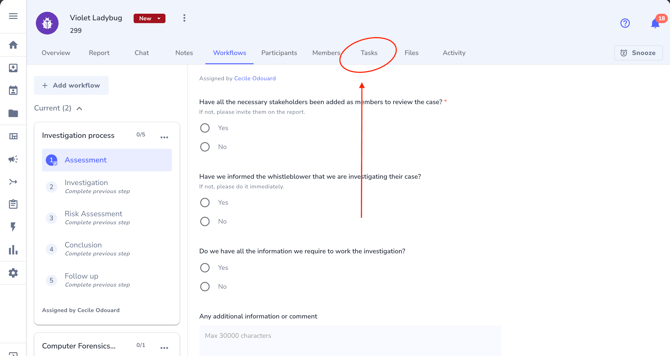
If the task tab is not displayed for your account, please reach out to your Customer Success Manager or email us at support@whispli.com
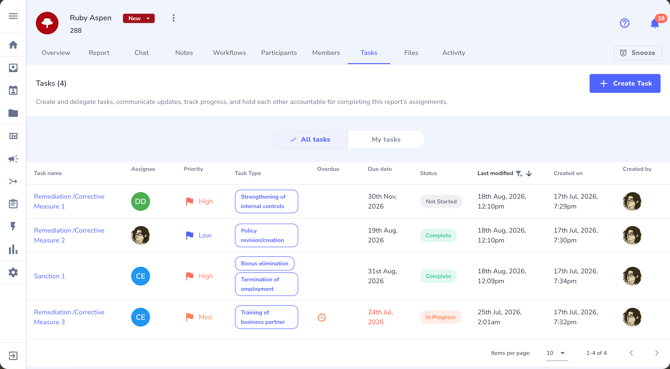
If tasks were already created for the report, they are immediately displayed as soon as the user clicks on the task tab:
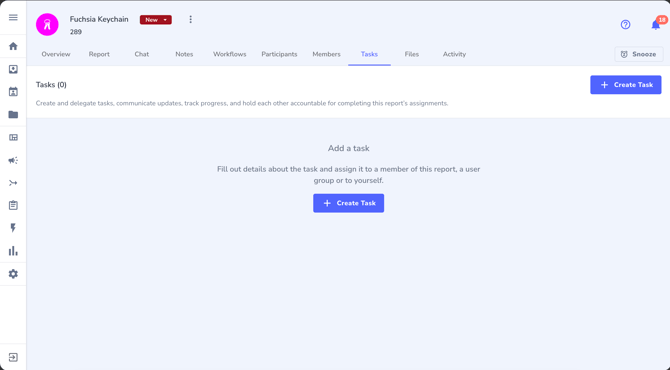
If there are no tasks yet, a blank screen is displayed with a button to start creating tasks:
How can I create a task?
when you click on the task tab, a blue button is available at the top right of the tab to create a new task. Anyone with editing access to the task tab can create a task.
A blank form is then displayed to enter the task details:
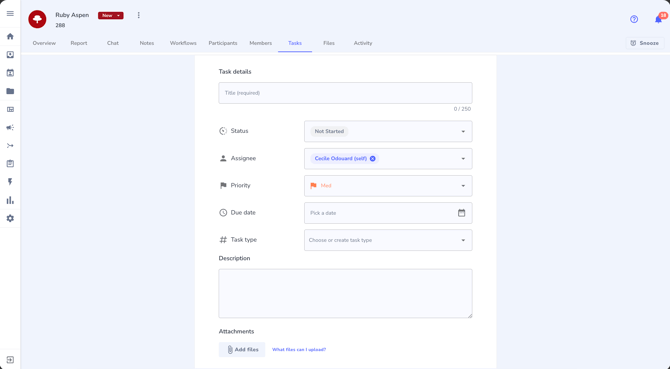
By default, the task creator is assigned to the new task.
You can enter a title, a status, an assignee, a priority (high, medium, low), a due date, a task type and a description. It's also possible to attach an unlimited amount of files to the task.
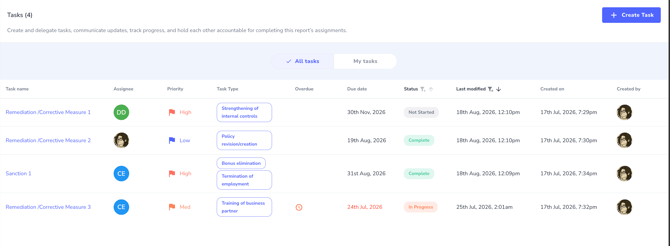
Once the task is created, it is listed in the task tab with all the other tasks:
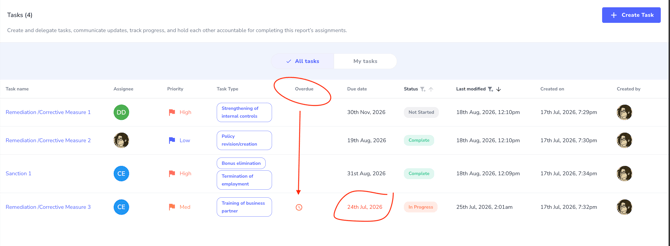
 If the task is overdue, there is a sign and the date is highlighted in red in the task list:
How can I view or edit a task?
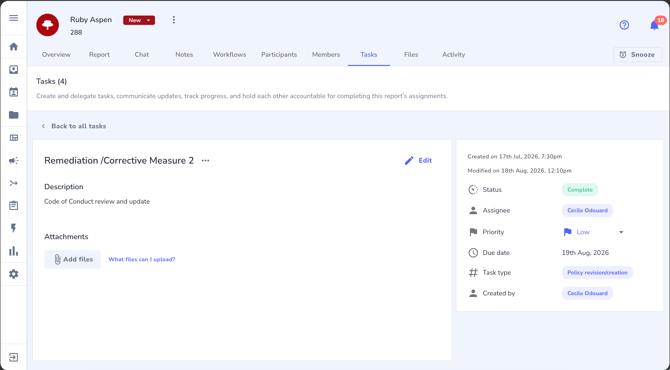
To check the task details, just click on its title, it will open the full screen view:
From this view, you can access the editing options:
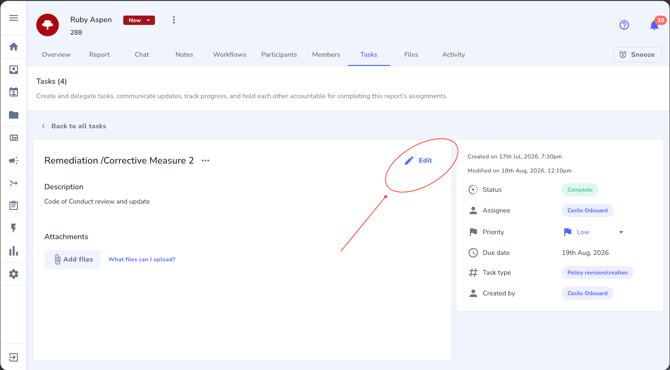
You can then modify all the fields, add more information in the description or attach additional files.
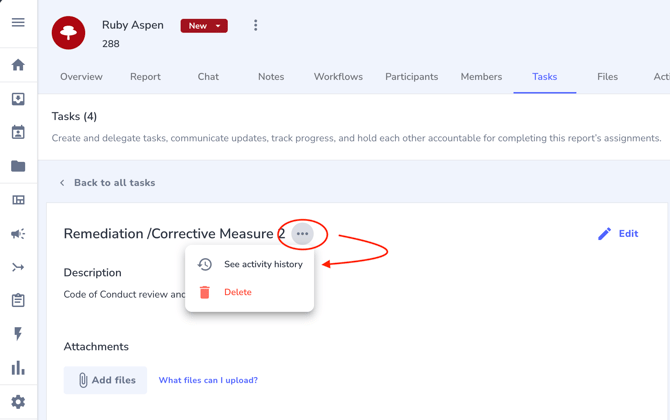
You can also access the tasks history by clicking on the three dots next to the task title:
Is it possible to delete a task?
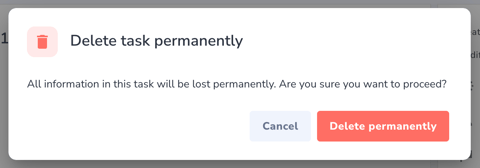
Yes, it's possible to delete a task. Any member of a report can delete a task. A warning message is displayed to inform the user:
How can I easily access all task attachments?
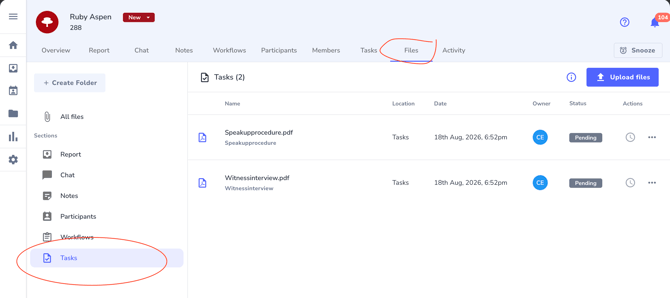
The task attachments are accessible from each individual task, but they are also listed in the 'Files' tab and can be found listed under the 'Task' section of the files tab:
Who can be assigned to a task?
Only licensed member with an active access to the report can be assigned to a task.
Guest users cannot be assigned to a task. If a user is not listed in the drop down list when selecting the assignee, make sure this user is a member of the report.
What are the default task notifications?
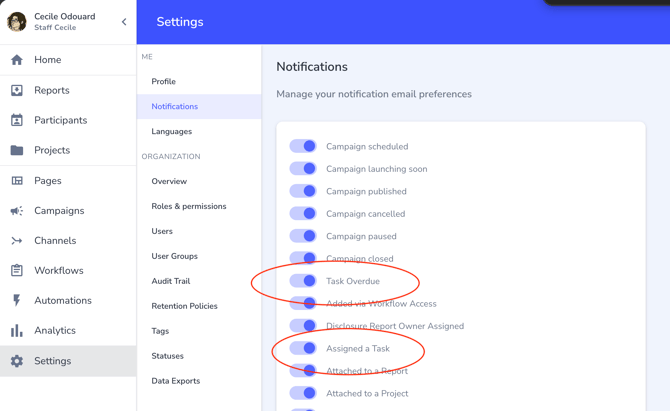
By default, users receive email and in-app notifications when they are assigned to a task, and when the tasks they are assigned to become overdue. However, each user can deactivate one or both notifications in their notification settings:
What are the filtering/sorting options?
It is possible to filter tasks to only view the ones you need to address.
- My tasks
The first option is to use the quick filter to only view the tasks you have been assigned to, available above the list:
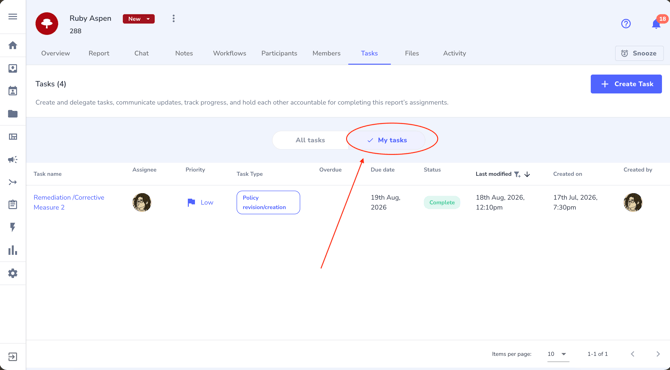
Please note that it will not display all the tasks you created, only the ones where you are identified as assignee.
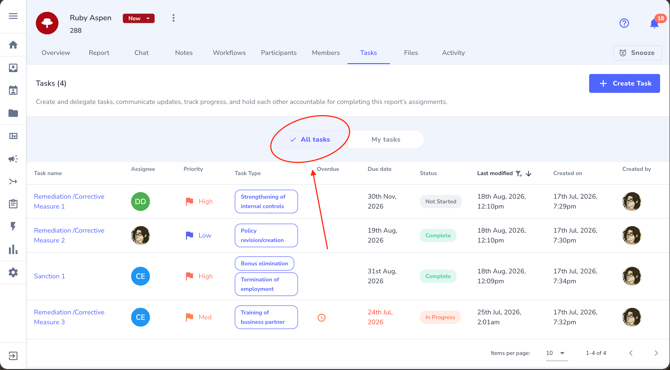
To go back to the full task list, just click on the other option: 'All tasks':
- Filter/sorting by column
It's also possible to sort or filter on each column. When you roll over a column header, an arrow (to sort) and a funnel icon (to filter) appear:
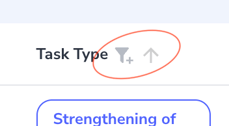
If you click on the arrow, it will sort the tasks on the data from that column. If you click again on the arrow, it will sort the tasks in the opposite order.
If you click on the funnel icon, a menu will open for you to select the values to filter on:
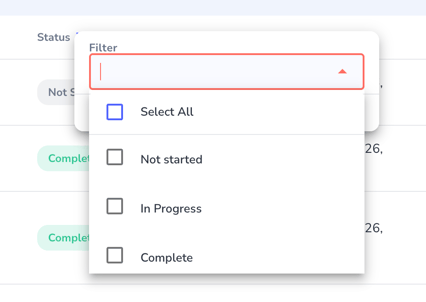 The list of tasks will then be filtered on the chosen values:
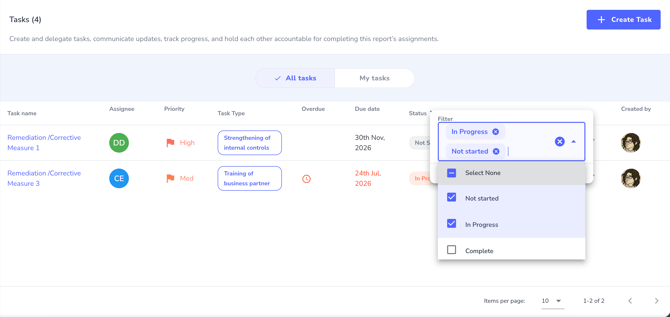
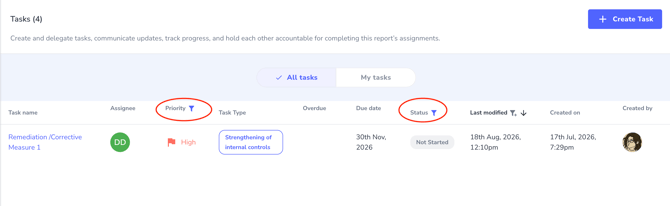
It is possible to have filters on one or several columns. When a filter is applied, the funnel icon is displayed in blue:
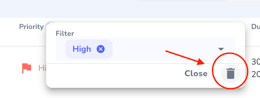
To remove the filter, click on the funnel icon and then on the bin icon in the pop up:
Task access rights: who can see the tasks?
By default, tasks are visible and editable by all the licensed members of the report.
Guest users do not see the tasks.
Informants and participants have no access to the tasks either.
It is possible for admins and configurators to customize a specific role to remove access to the task tab or only provide a read-only access for specific user profiles. (Click here to learn more about custom roles).
It is also possible to have a 'task manager' user profile that would not have access to the other tabs (chat, notes, workflows, etc.)
What are tasks usually used for in Whispli?
Here are the most common use cases for the tasks:
- to list and assign detailed investigation tasks: allocate the interviews amongst the various investigators, submit computer forensics approval requests, etc.
- to document and follow up remediation actions and sanctions
More options coming soon for the task feature...
We're planning a major upgrade to make tasks a more powerful part of your workflow. Key planned improvements include:
- A Central Task Hub: View and manage all your tasks across all reports from a single, dedicated section.
- Task Automation: Automatically create tasks as part of a workflow rule to ensure key actions are never missed.
- Reusable Task Templates: Save common tasks or checklists as templates for quick and consistent use.
- Dashboard Widgets: Add a "My Tasks" widget to your dashboard for at-a-glance visibility of your priorities.